
Set up Maester email alerts
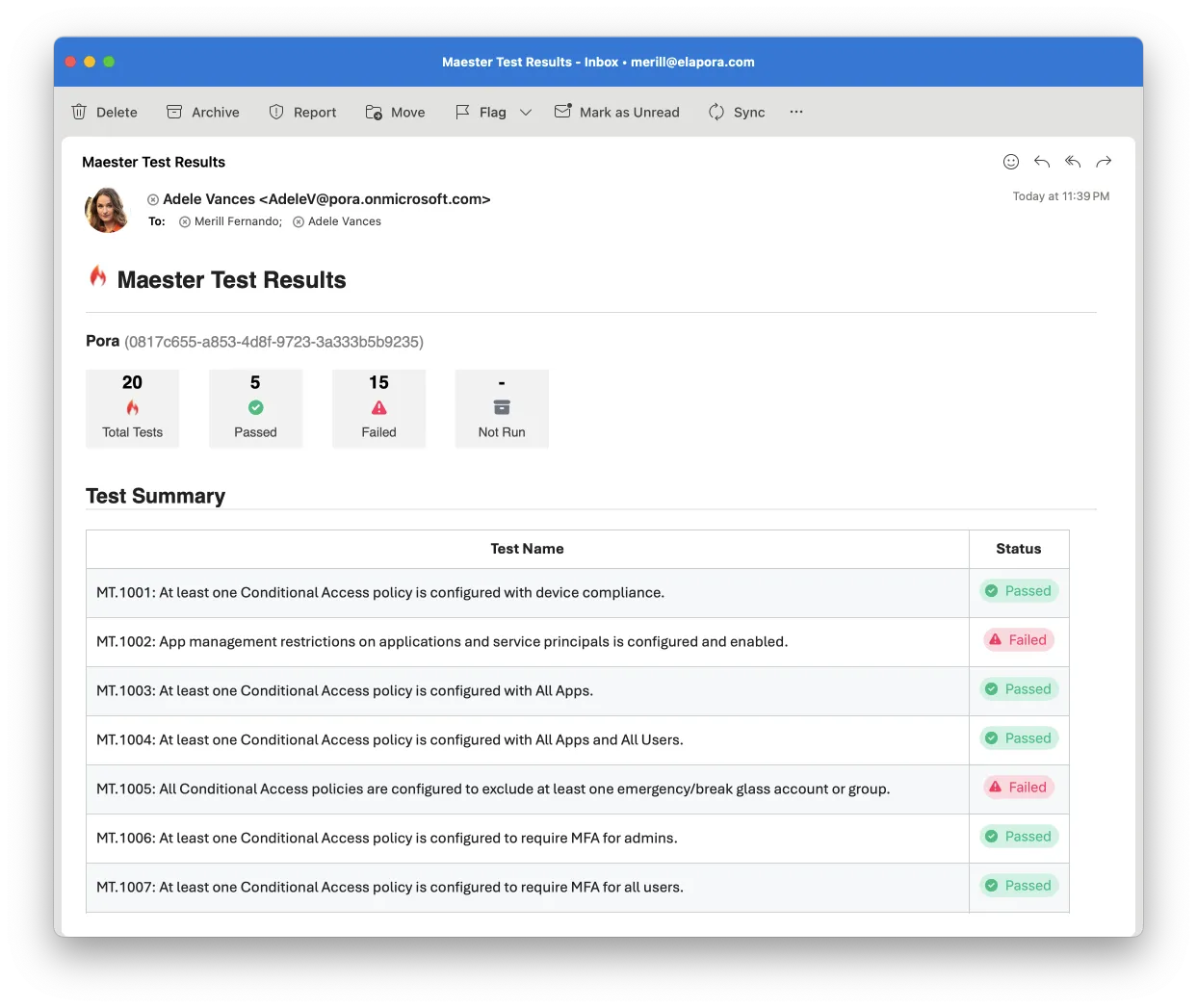
Your Maester monitoring workflow can be configured to send an email summary at the end of each monitoring cycle. This guide will walk you through the steps to set up email alerts in Maester.
Prerequisites
Section titled “Prerequisites”Before you can send email alerts using Exchange Online you need to grant the application access to a mailbox. There’s two ways to assign the this permissions:
- Using RBAC for Applications for scoped access (Recommended)
- Using Graph permission in Entra and limiting access to mailbox using Application Access Policy
Using RBAC for Applications
Section titled “Using RBAC for Applications”RBAC for Applications is the newest and most secure way to grant least privilege access to applications in Exchange Online. The example below will dynamically grant an app Mail.Send permission for the specific mailbox only.
The application should not be assigned Mail.Send application permission in Entra, see warning below.
Import-Module ExchangeOnlineManagement
# Authenticate to Entra and Exchange OnlineConnect-MgGraph -Scopes 'Application.Read.All'Connect-ExchangeOnline
# Find your Maester service principal. Update filter with the name of your app registration or managed identity$entraSP = Get-MgServicePrincipal -Filter "DisplayName eq 'Maester'"
# Register Maester service principal in ExchangeNew-ServicePrincipal -AppId $entraSP.AppId -ObjectId $entraSP.Id -DisplayName $entraSP.DisplayName
# Find the mailbox you'd like to send from# Or create a new shared mailbox:# $mailbox = New-Mailbox -Shared -Name "Maester" -PrimarySmtpAddress [email protected]
# Create a RBAC scope to reference the mailboxNew-ManagementScope -Name "rbac_Maester" -RecipientRestrictionFilter "GUID -eq '$($mailbox.GUID)'"
# Assign Mail.Send role limited to only the Maester scope/mailboxNew-ManagementRoleAssignment -App $entraSP.AppId -Role "Application Mail.Send" -CustomResourceScope "rbac_Maester" -Name "Maester Send Mail RBAC"
# Verify access. This should show a line with Mail.Send permission and InScope = TrueTest-ServicePrincipalAuthorization $entraSP.AppId -Resource $mailbox
Write-Host "Use '$($mailbox.ExternalDirectoryObjectId)' when calling Invoke-Maester -MailUserId or Send-MtMail -UserId"Using Graph permissions
Section titled “Using Graph permissions”This method is no longer recommended, but included for reference. To configure:
- Open the Entra admin center > Identity > Applications > App registrations
- Search for the application you created to run as the
Maester DevOps Account. - Select API permissions > Add a permission
- Select Microsoft Graph > Application permissions
- Search for
Mail.Sendand check the box next to the permission - Select Add permissions
- Select Grant admin consent for [your organization]
- Select Yes to confirm
Add the email alert step to your workflow
Section titled “Add the email alert step to your workflow”Update your GitHub/Azure DevOps daily monitoring workflow to send the email alert using Send-MtMail after the Maester tests have been run.
Note: A UserId is required when running under an application context. This can be the UserId of any user or mailbox account in the tenant and will be the mailbox from where this message is sent from.
# Get the results of the Maester tests using -PassThru$results = Invoke-Maester -Path tests/Maester/ {...} -PassThru
# Send the email summary using the resultsAdding a link to detailed Maester results in the email
Section titled “Adding a link to detailed Maester results in the email”The Send-MtMail cmdlet has a -TestResultsUri parameter that can be used to include a link to the detailed Maester results in the email.
To use this parameter, you need to provide the URL of the Maester results page. Use the appropriate url format based on the CI/CD system you are using.
GitHub
Section titled “GitHub”Link: ${{ github.server_url }}/${{ github.repository }}/actions/runs/${{ github.run_id }}
$testResultsUri = "${{ github.server_url }}/${{ github.repository }}/actions/runs/${{ github.run_id }}"Send-MtMail $results -Recipient $recipients -UserId $userId -TestResultsUri $testResultsUriAzure DevOps
Section titled “Azure DevOps”Link: $(System.CollectionUri)$(System.TeamProject)/_build/results?buildId=$(Build.BuildId)
$testResultsUri = "$(System.CollectionUri)$(System.TeamProject)/_build/results?buildId=$(Build.BuildId)"Send-MtMail $results -Recipient $recipients -UserId $userId -TestResultsUri $testResultsUri