
Azure DevOps Pipeline
For automated monitoring we use an Azure DevOps pipeline with separate service connections per tenant. Each one uses workload identity federation to authenticate with read-only permissions.
The pipeline uses a ${{ each }} loop to generate a step per tenant, so adding more tenants is just adding another entry to the YAML.
Prerequisites
Section titled “Prerequisites”Per tenant:
- An app registration with the required Microsoft Graph read permissions granted with admin consent
- A workload identity federation service connection in Azure DevOps pointing to the app registration
For publishing:
- An Azure Web App to host the report (see Maester results on Azure Web App for how to set one up)
- A service connection with Website Contributor role on the web app
Maester module:
- Latest version with multi-tenant support (
Merge-MtMaesterResultandGet-MtHtmlReportare included)
Tenant parameters
Section titled “Tenant parameters”Each tenant in the pipeline accepts the following parameters:
General
| Parameter | Required | Description |
|---|---|---|
name | Yes | Display name for the pipeline step, e.g. “Production” |
serviceConnection | Yes | Azure DevOps service connection name (workload identity federation) |
tenantId | Yes | Entra ID tenant ID |
clientId | Yes | App registration client ID in the target tenant |
environment | Yes | Cloud environment: Global, China, USGov, USGovDoD or Germany |
Exchange Online & Security and Compliance
| Parameter | Required | Description |
|---|---|---|
includeExchange | No | Run Exchange Online tests, defaults to false |
includeISSP | No | Run Security & Compliance tests, defaults to false. Requires includeExchange |
organizationName | When Exchange/ISSP enabled | Tenant primary domain (e.g. contoso.onmicrosoft.com) |
Microsoft Teams
| Parameter | Required | Description |
|---|---|---|
includeTeams | No | Run Microsoft Teams tests, defaults to false |
At minimum you only need the five general parameters per tenant. The rest defaults to false/empty:
parameters: - name: tenants type: object default: - name: Production serviceConnection: sc-maester-production tenantId: <your-production-tenant-id> clientId: <your-production-client-id> environment: Global includeTeams: true includeExchange: true includeISSP: true organizationName: contoso.onmicrosoft.com - name: Development serviceConnection: sc-maester-development tenantId: <your-dev-tenant-id> clientId: <your-dev-client-id> environment: Global - name: China serviceConnection: sc-maester-china tenantId: <your-china-tenant-id> clientId: <your-china-client-id> environment: ChinaTenant isolation
Section titled “Tenant isolation”Each tenant step explicitly disconnects from all services (Microsoft Graph, Exchange Online, Microsoft Teams) after the tests complete. This makes sure no session state leaks between tenant steps, even though all steps run in the same pipeline job on the same agent.
What the pipeline does
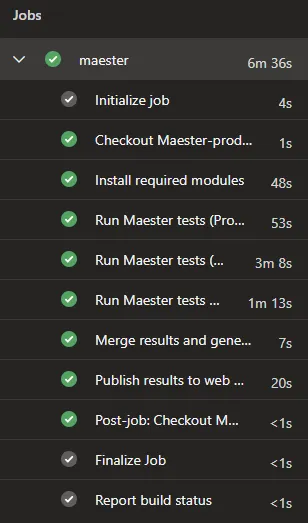
Section titled “What the pipeline does”- Install modules once (Maester, Pester, Graph, Exchange, Teams)
- Run Maester tests for each tenant, connecting with the tenant’s service connection and saving the results as JSON
- Merge all tenant JSON results into a single multi-tenant object using
Merge-MtMaesterResult - Generate a combined HTML report with
Get-MtHtmlReportand package it as a zip - Publish the zip to an Azure Web App using
Publish-AzWebApp
Full pipeline YAML
Section titled “Full pipeline YAML”trigger: none
parameters: - name: tenants type: object default: - name: Production serviceConnection: sc-maester-production tenantId: <your-production-tenant-id> clientId: <your-production-client-id> environment: Global includeTeams: true includeExchange: true includeISSP: true organizationName: contoso.onmicrosoft.com - name: Development serviceConnection: sc-maester-development tenantId: <your-dev-tenant-id> clientId: <your-dev-client-id> environment: Global - name: China serviceConnection: sc-maester-china tenantId: <your-china-tenant-id> clientId: <your-china-client-id> environment: China
variables: PublishServiceConnection: sc-maester-publish WebAppSubscriptionId: <your-webapp-subscription-id> WebAppResourceGroup: rg-maester WebAppName: app-maester-example ResultsDir: $(Pipeline.Workspace)/maester-results
schedules:- cron: "0 6 * * *" displayName: daily at 06:00 always: true branches: include: - main
jobs:- job: maester timeoutInMinutes: 0 pool: vmImage: ubuntu-latest
steps: - checkout: self fetchDepth: 1
- task: AzurePowerShell@5 inputs: azureSubscription: ${{ parameters.tenants[0].serviceConnection }} ScriptType: 'InlineScript' pwsh: true azurePowerShellVersion: latestVersion Inline: | Install-Module 'Maester', 'Pester', 'NuGet', 'PackageManagement', 'Microsoft.Graph.Authentication', 'ExchangeOnlineManagement', 'MicrosoftTeams' -Confirm:$false -Force New-Item -ItemType Directory -Force -Path '$(ResultsDir)' displayName: 'Install required modules'
- ${{ each tenant in parameters.tenants }}: - task: AzurePowerShell@5 inputs: azureSubscription: ${{ tenant.serviceConnection }} ScriptType: 'InlineScript' pwsh: true azurePowerShellVersion: latestVersion Inline: | $includeExchange = '${{ tenant.includeExchange }}'.Trim().ToLower() -eq 'true' $includeTeams = '${{ tenant.includeTeams }}'.Trim().ToLower() -eq 'true' $includeISSP = '${{ tenant.includeISSP }}'.Trim().ToLower() -eq 'true' $TenantId = '${{ tenant.tenantId }}' $ClientId = '${{ tenant.clientId }}' $Environment = '${{ tenant.environment }}'
switch ($Environment) { 'China' { $graphUrl = 'https://microsoftgraph.chinacloudapi.cn' $graphEnvironment = 'China' $outlookUrl = 'https://partner.outlook.cn' $exchangeEnv = 'O365China' $complianceUrl = 'https://ps.compliance.protection.partner.outlook.cn' } 'USGov' { $graphUrl = 'https://graph.microsoft.us' $graphEnvironment = 'USGov' $outlookUrl = 'https://outlook.office365.us' $exchangeEnv = 'O365USGovGCCHigh' $complianceUrl = 'https://ps.compliance.protection.office365.us' } 'USGovDoD' { $graphUrl = 'https://dod-graph.microsoft.us' $graphEnvironment = 'USGovDoD' $outlookUrl = 'https://outlook.office365.us' $exchangeEnv = 'O365USGovDoD' $complianceUrl = 'https://ps.compliance.protection.office365.us' } 'Germany' { $graphUrl = 'https://graph.microsoft.de' $graphEnvironment = 'Germany' $outlookUrl = 'https://outlook.office.de' $exchangeEnv = 'O365GermanyCloud' $complianceUrl = 'https://ps.compliance.protection.outlook.de' } default { $graphUrl = 'https://graph.microsoft.com' $graphEnvironment = 'Global' $outlookUrl = 'https://outlook.office365.com' $exchangeEnv = 'O365Default' $complianceUrl = 'https://ps.compliance.protection.outlook.com' } }
$graphToken = Get-AzAccessToken -ResourceUrl $graphUrl -AsSecureString Connect-MgGraph -AccessToken $graphToken.Token -Environment $graphEnvironment -NoWelcome
if ($includeExchange) { Import-Module ExchangeOnlineManagement $outlookToken = (ConvertFrom-SecureString -SecureString (Get-AzAccessToken -ResourceUrl $outlookUrl -AsSecureString).Token -AsPlainText) Connect-ExchangeOnline -AccessToken $outlookToken -AppId $ClientId -Organization $TenantId -ExchangeEnvironmentName $exchangeEnv -ShowBanner:$false
if ($includeISSP) { $ISSPToken = (ConvertFrom-SecureString -SecureString (Get-AzAccessToken -ResourceUrl $complianceUrl -AsSecureString).Token -AsPlainText) Connect-IPPSSession -AccessToken $ISSPToken -Organization '${{ tenant.organizationName }}' } }
if ($includeTeams) { Import-Module MicrosoftTeams $teamsToken = Get-AzAccessToken -ResourceUrl '48ac35b8-9aa8-4d74-927d-1f4a14a0b239' -AsSecureString $regularGraphToken = ConvertFrom-SecureString -SecureString $graphToken.Token -AsPlainText $teamsTokenPlainText = ConvertFrom-SecureString -SecureString $teamsToken.Token -AsPlainText Connect-MicrosoftTeams -AccessTokens @($regularGraphToken, $teamsTokenPlainText) }
$runFolder = Join-Path "$(Agent.TempDirectory)" '${{ tenant.name }}-tests' New-Item -ItemType Directory -Force -Path "$runFolder" Push-Location $runFolder Install-MaesterTests .\tests
$jsonFile = Join-Path '$(ResultsDir)' '${{ tenant.name }}.json' Invoke-Maester -OutputJsonFile $jsonFile -PassThru -Verbosity Normal Pop-Location
# Disconnect all sessions to ensure tenant isolation between steps Disconnect-MgGraph -ErrorAction SilentlyContinue if ($includeExchange) { Disconnect-ExchangeOnline -Confirm:$false -ErrorAction SilentlyContinue } if ($includeTeams) { Disconnect-MicrosoftTeams -ErrorAction SilentlyContinue } displayName: 'Run Maester tests (${{ tenant.name }})'
- task: AzurePowerShell@5 inputs: azureSubscription: $(PublishServiceConnection) ScriptType: 'InlineScript' pwsh: true azurePowerShellVersion: latestVersion Inline: | $resultsDir = '$(ResultsDir)'
# Merge all tenant JSON results and generate the report $merged = Merge-MtMaesterResult -Path $resultsDir $date = (Get-Date).ToString("yyyyMMdd-HHmm") $outputDir = Join-Path "$(Agent.TempDirectory)" "report-$date" New-Item -ItemType Directory -Force -Path $outputDir Get-MtHtmlReport -MaesterResults $merged | Out-File -FilePath (Join-Path $outputDir 'index.html') -Encoding UTF8
$zipPath = Join-Path "$(Agent.TempDirectory)" "MaesterReport$date.zip" Compress-Archive -Path (Get-ChildItem -Path $outputDir).FullName -DestinationPath $zipPath
if (-not (Test-Path $zipPath)) { throw "Zip file was not created at: $zipPath" } Write-Host "##vso[task.setvariable variable=MaesterZipPath]$zipPath" displayName: 'Merge results and generate multi-tenant report'
- task: AzurePowerShell@5 inputs: azureSubscription: $(PublishServiceConnection) ScriptType: 'InlineScript' pwsh: true azurePowerShellVersion: latestVersion Inline: | Select-AzSubscription -Subscription '$(WebAppSubscriptionId)' Publish-AzWebApp -ResourceGroupName '$(WebAppResourceGroup)' -Name '$(WebAppName)' -ArchivePath '$(MaesterZipPath)' -Force displayName: 'Publish results to web app'Want to add another tenant?
Section titled “Want to add another tenant?”Just add a new entry to the tenants parameter array. The pipeline generates the test step automatically and the merge picks up all JSON files. No other changes needed.
Publishing the report
Section titled “Publishing the report”The pipeline expects an Azure Web App to already exist. If you don’t have one yet, check out Maester results on Azure Web App to get one up and running. The web app is secured with Entra ID authentication, so only users in your tenant can view the report.
Get Started
Section titled “Get Started”Follow the prerequisites above and the Maester permissions docs to get your multi-tenant monitoring up and running.