
Zero Trust in the report
Maester 3.0 can run Microsoft’s Zero Trust Assessment for you and bring its results into the same report. The assessment tells you what is configured; Microsoft’s Zero Trust Workshop tells you what to do, and in which order. The report puts the two together, so the workshop’s plan shows what your tenant has already done.
These pages are part of the Microsoft Zero Trust Assessment pack, which ships with Maester. Run it with:
Install-Module ZeroTrustAssessment -Scope CurrentUserConnect-MaesterInvoke-Maester -Pack ZTASee the Zero Trust Assessment pack for the requirements, the settings and how to run it in a pipeline.
Assessment results
Section titled “Assessment results”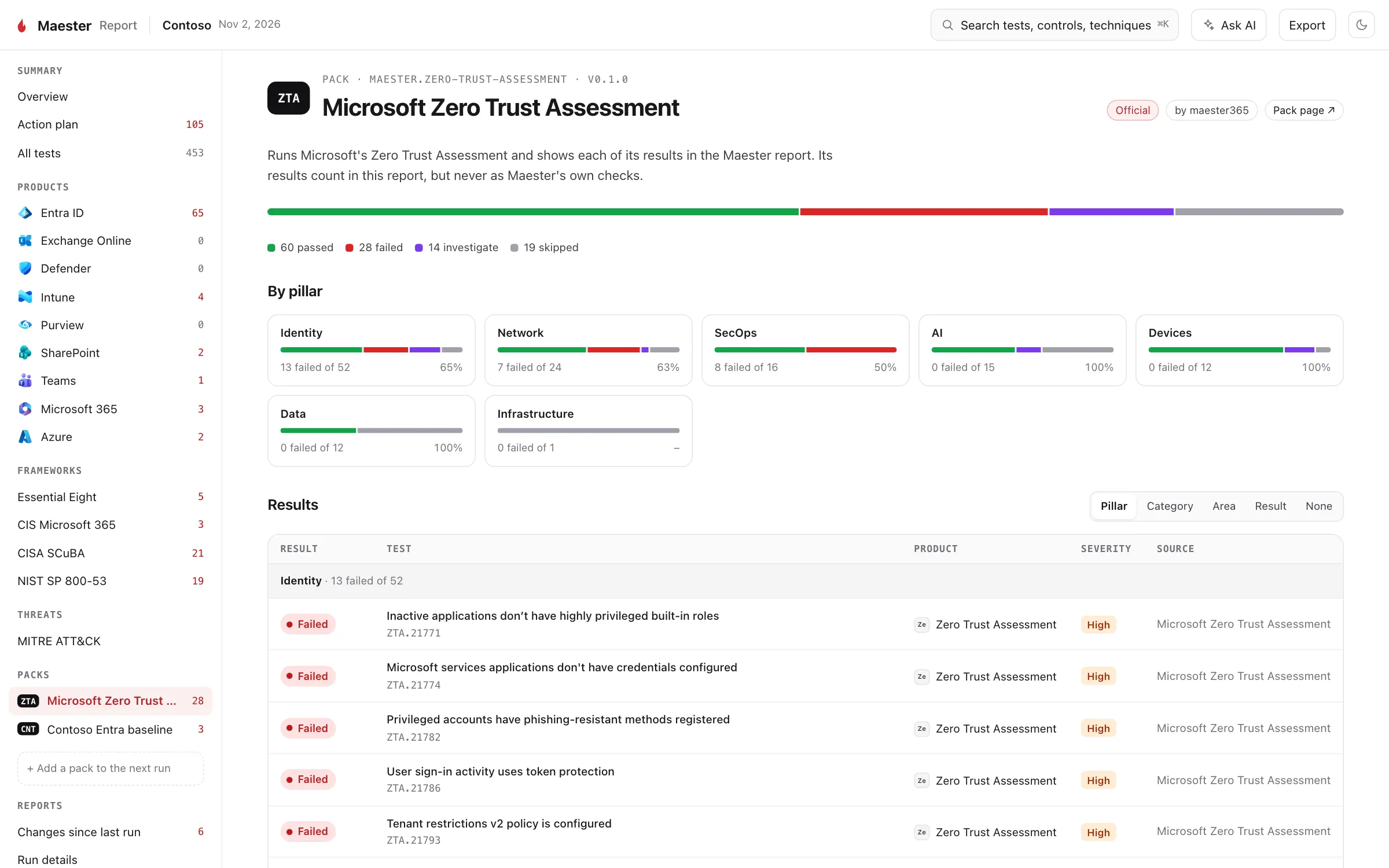
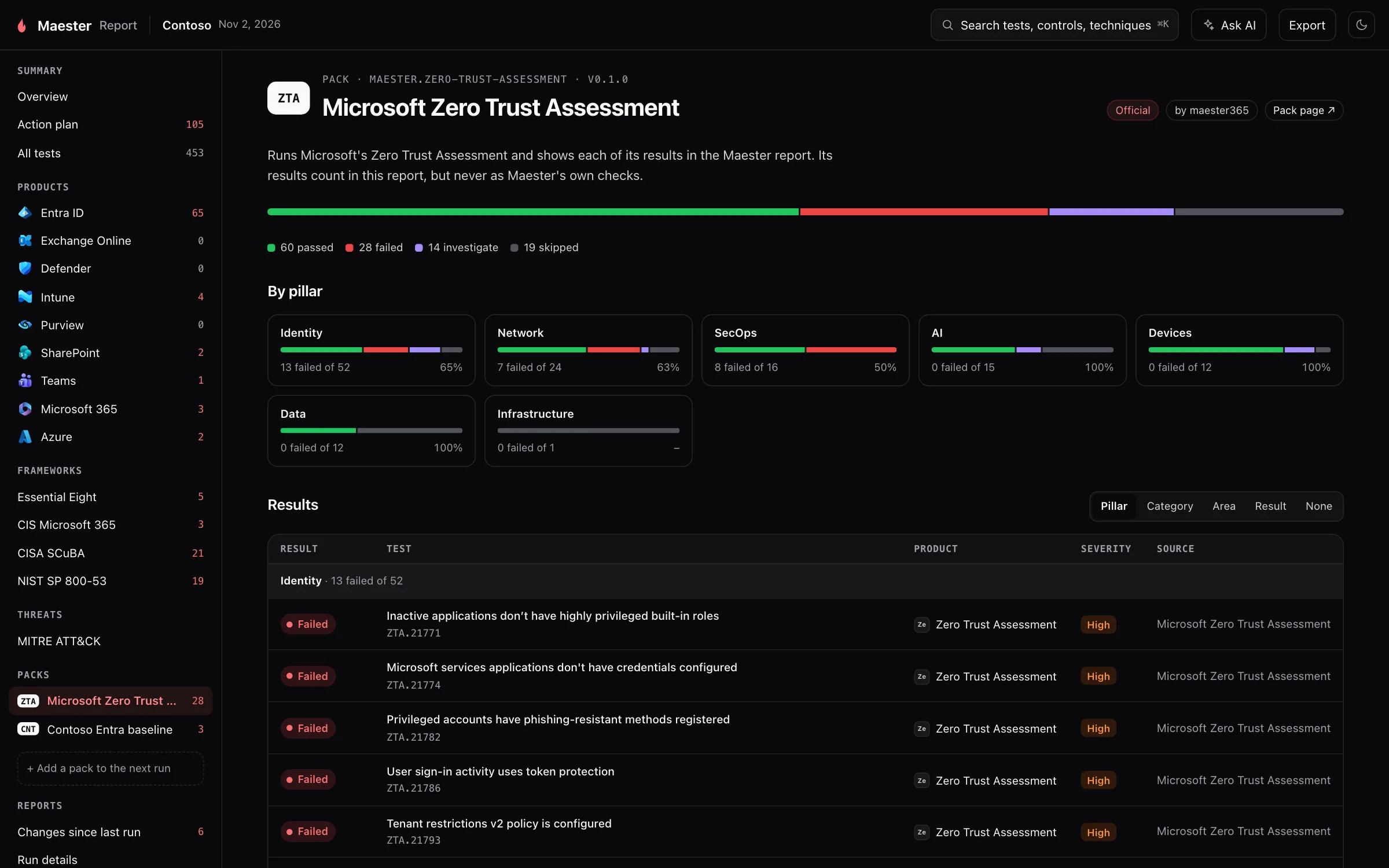
What it is for. Every result of the assessment, by Zero Trust pillar: Identity, Devices, Data, Network, Infrastructure, Security Operations and AI.
Why we built it. Running two tools gives you two reports to read and reconcile. Here each assessment result is a row like any other: it opens in the same panel, shows up on the product, ATT&CK and affected objects pages, and is in the action plan.
How it helps. You get one list of what to fix, and nothing to reconcile by hand.
Microsoft’s own report
Section titled “Microsoft’s own report”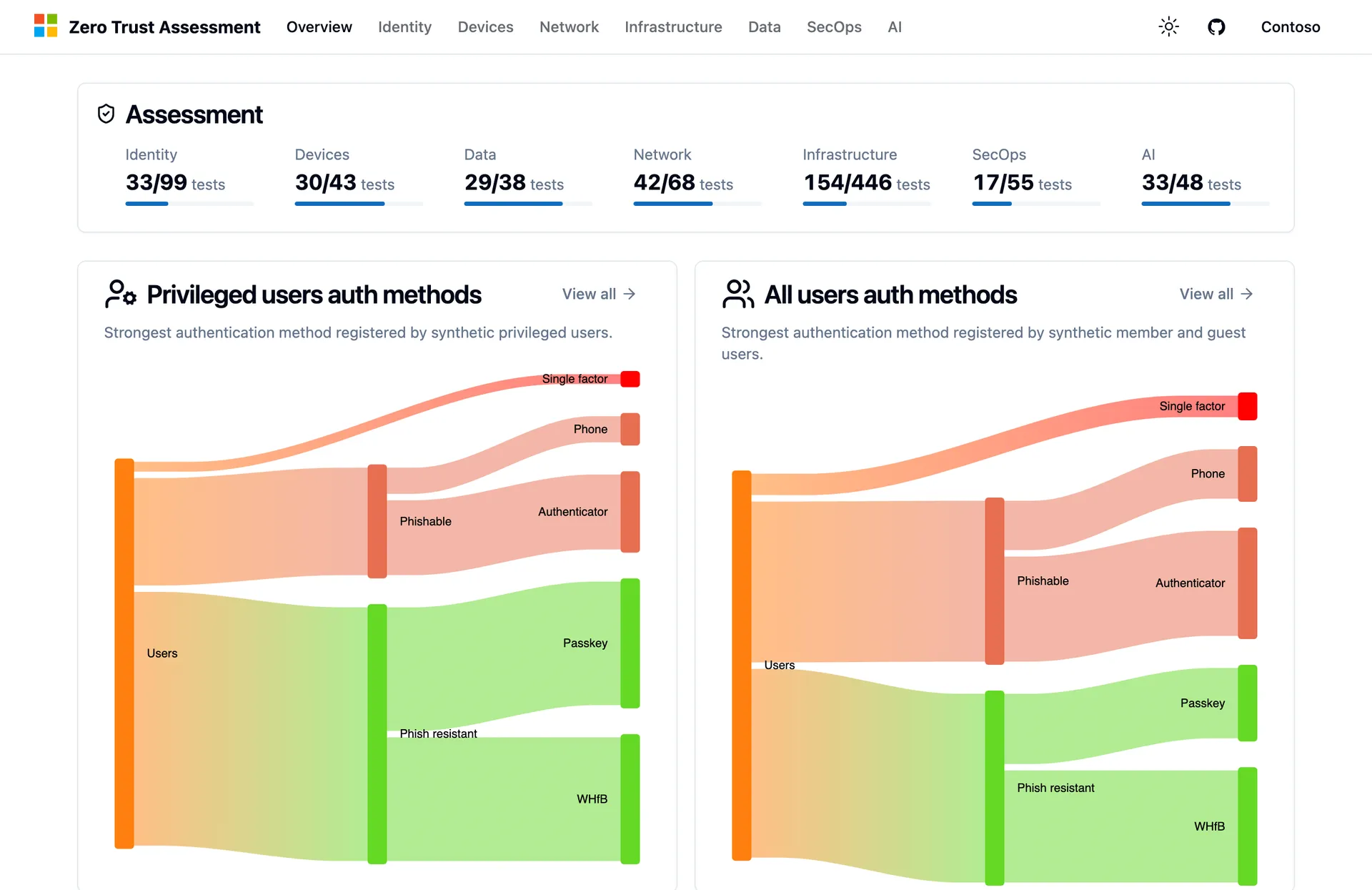
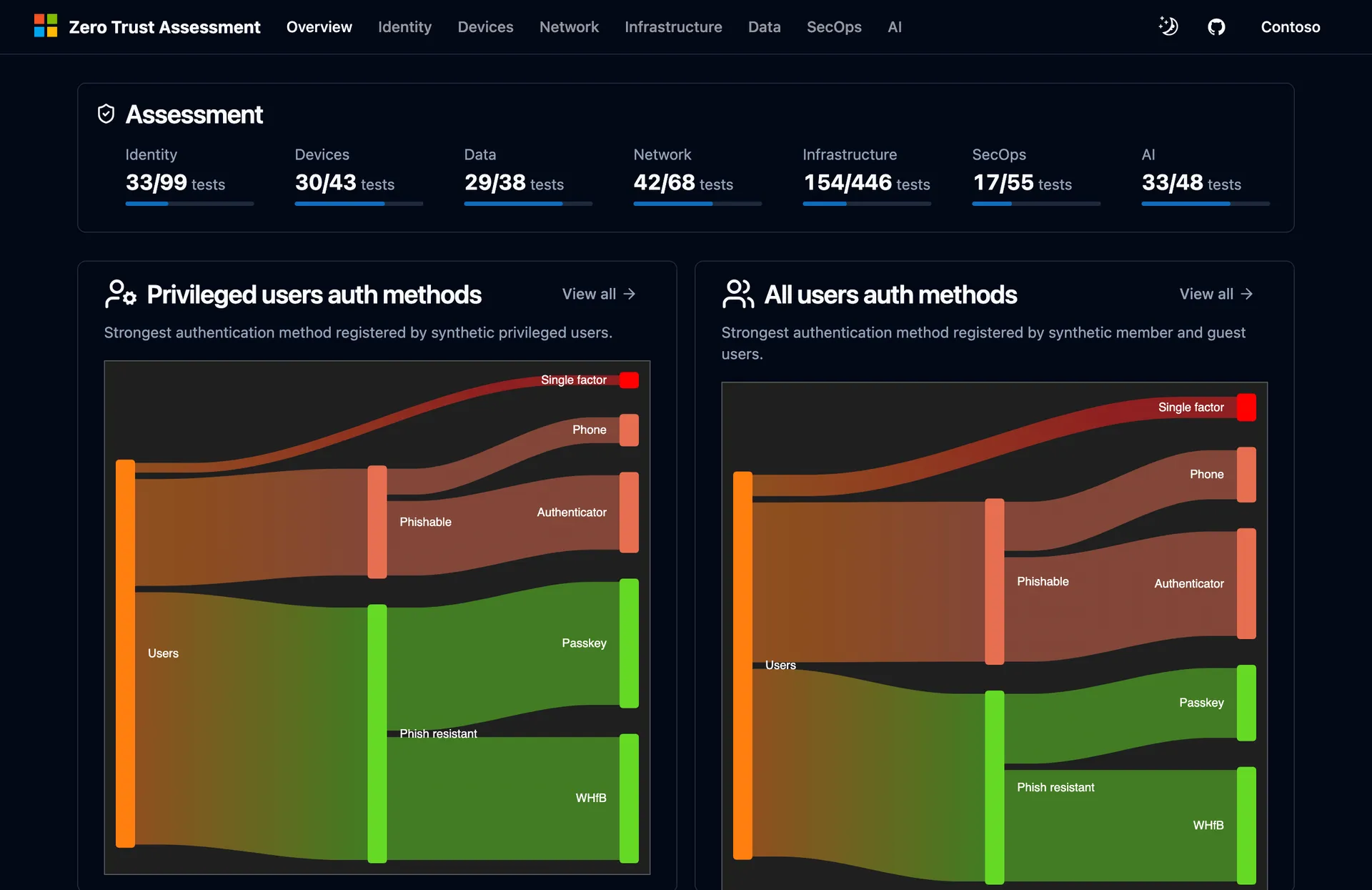
What it is for. The HTML report the assessment itself writes, with its pillar dashboards and charts, opened inside the Maester report.
Why we built it. Microsoft’s report has views Maester does not repeat, and people who already know it should not lose it by running the assessment through Maester.
How it helps. The Maester report stays one file to share, and it still works offline. Open the assessment’s report from the Zero Trust Assessment button on the overview, from Assessment report in the pack’s menu, or from any assessment result. It is left out when you redact user identities, because Maester cannot redact the assessment’s report. See The assessment’s own report.
Zero Trust plan
Section titled “Zero Trust plan”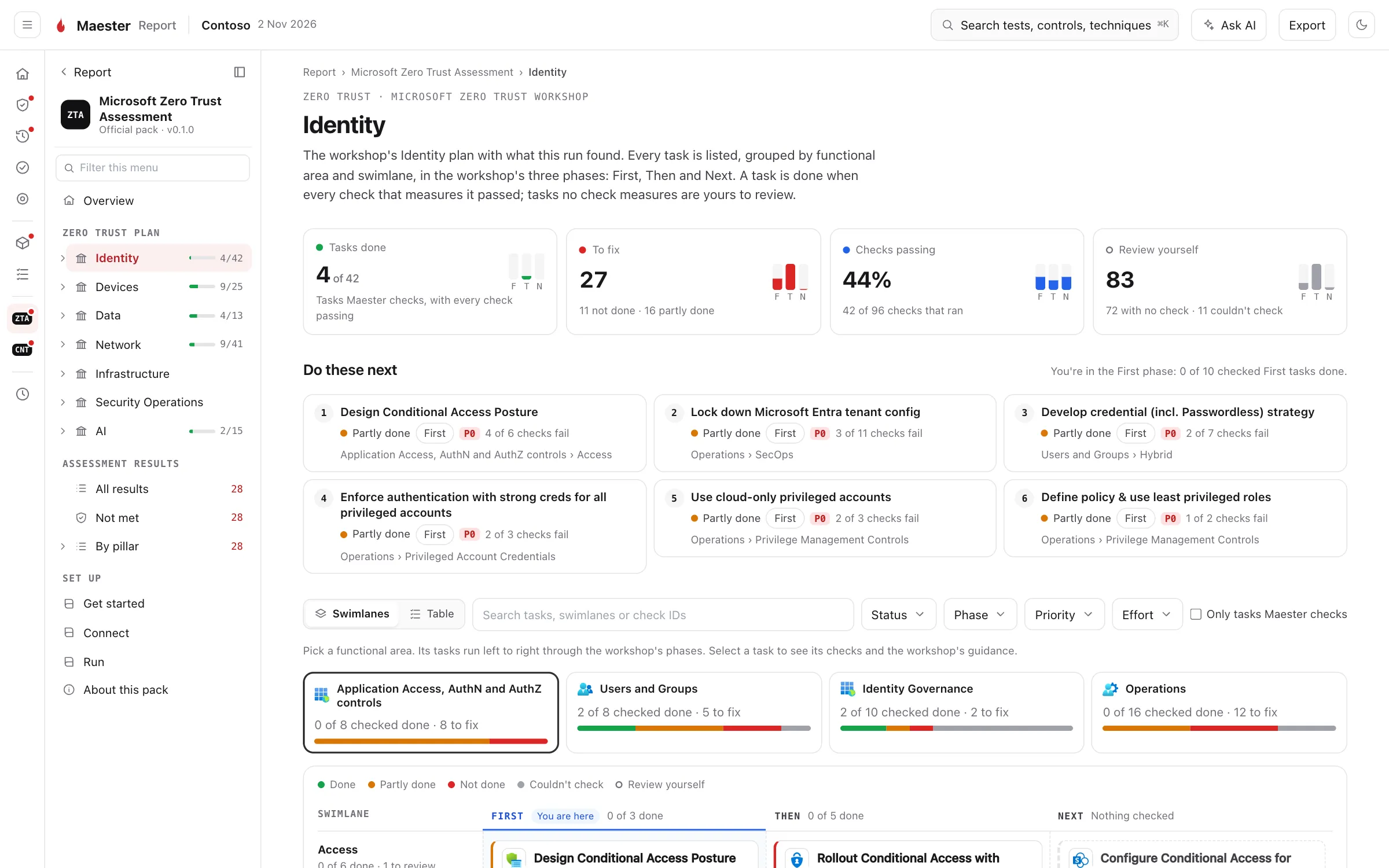
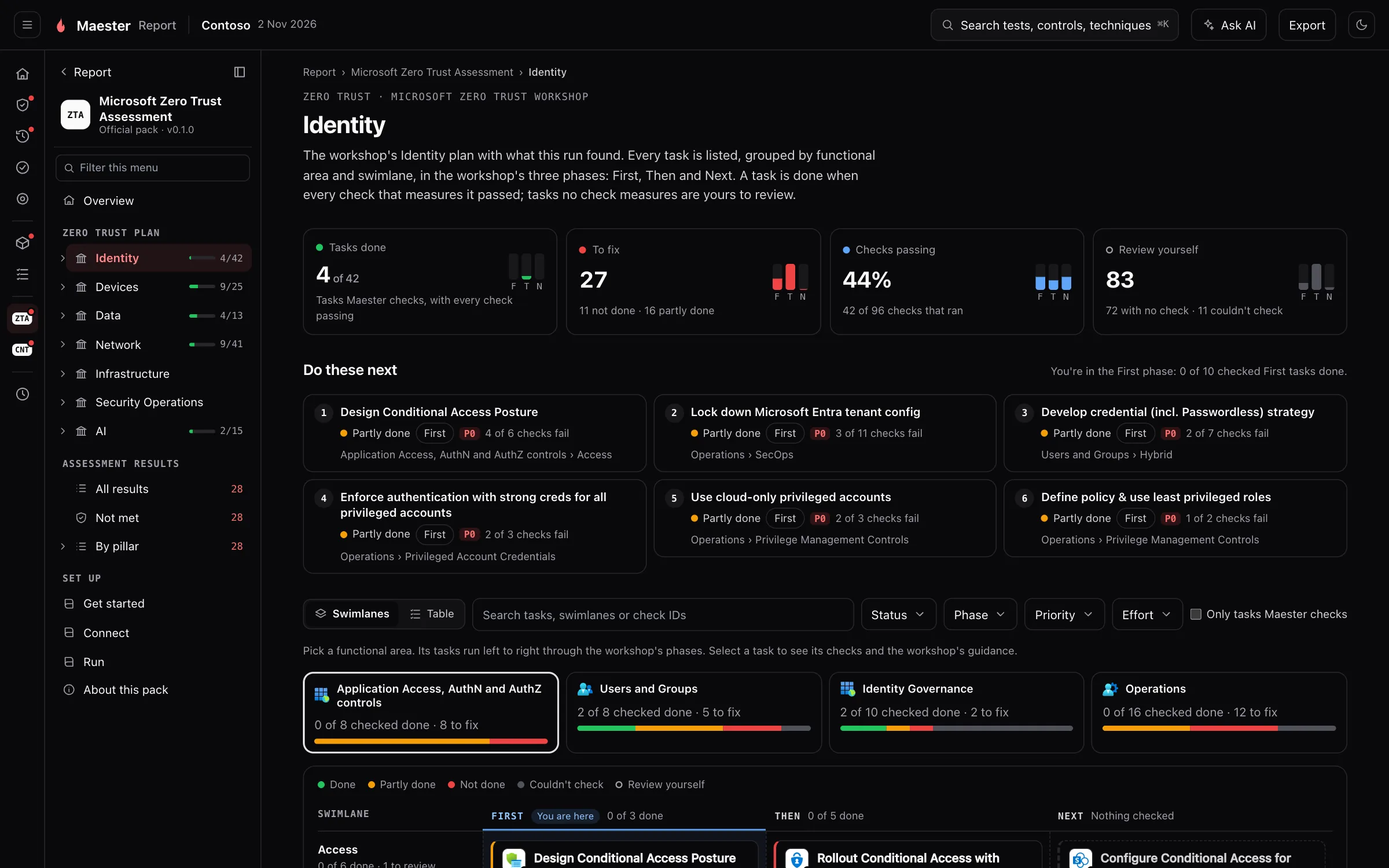
What it is for. Microsoft’s Zero Trust Workshop as a plan for your tenant. There is one page for each pillar, split into functional areas and swimlanes, and every task shows what this run found.
Why we built it. The workshop is a good roadmap, but on its own it is a checklist you fill in by hand, and it goes out of date the day after the meeting. Linking each task to the checks that measure it means the plan fills itself in, and updates every time Maester runs.
How it helps.
- The four tiles at the top say how far along the pillar is: tasks done, tasks to fix, the share of checks passing, and the tasks no check can measure, which are yours to review.
- Do these next picks the tasks to start with, following the workshop’s own order: First, Then, Next.
- The pack’s menu shows each pillar with a progress bar, so you can see at a glance which pillar is furthest behind.
A task is done when every check that ran for it passed, partly done when some failed and not done when all failed. Couldn’t check means none of its checks ran, and Review yourself that no check covers the task.
Swimlanes
Section titled “Swimlanes”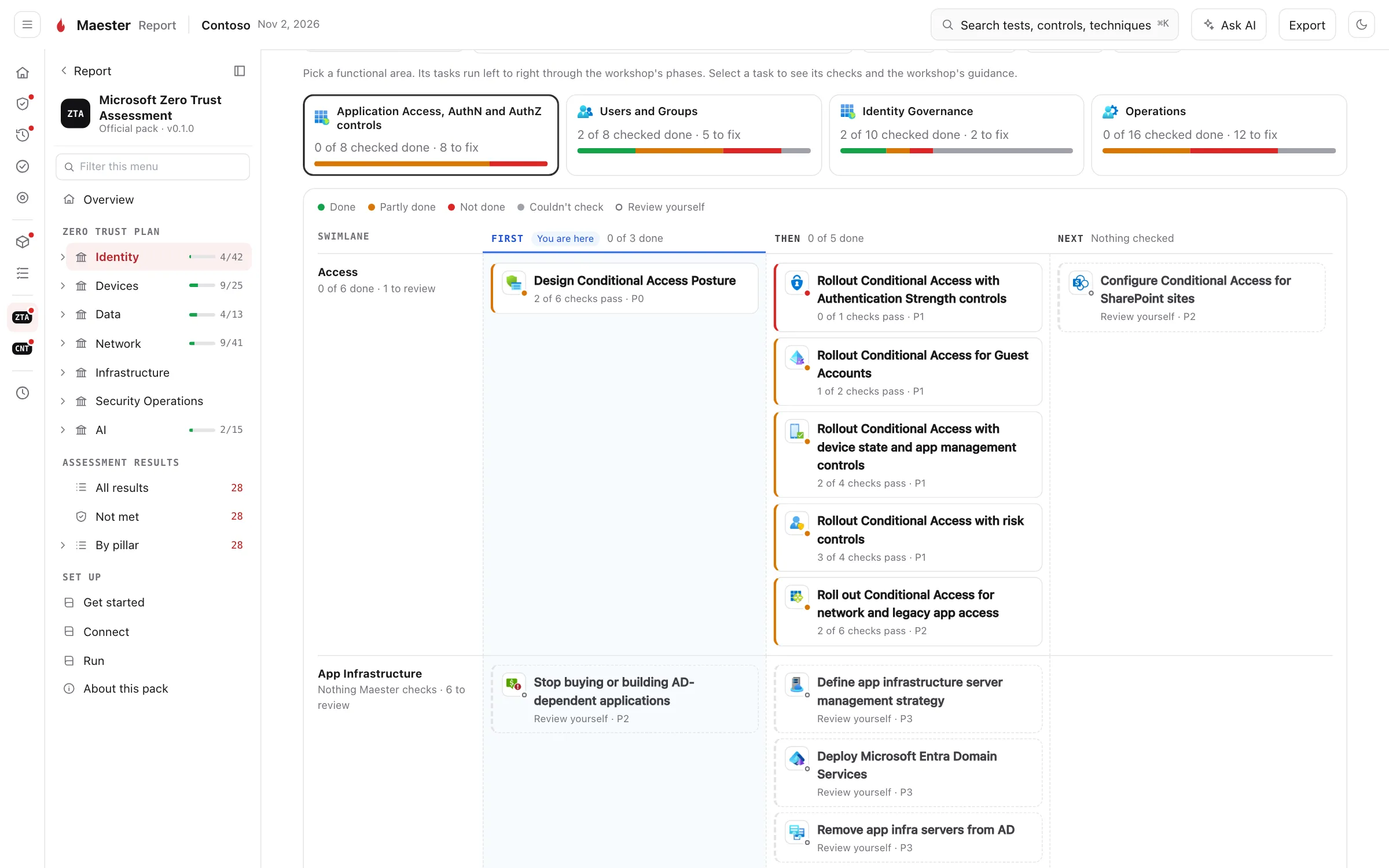
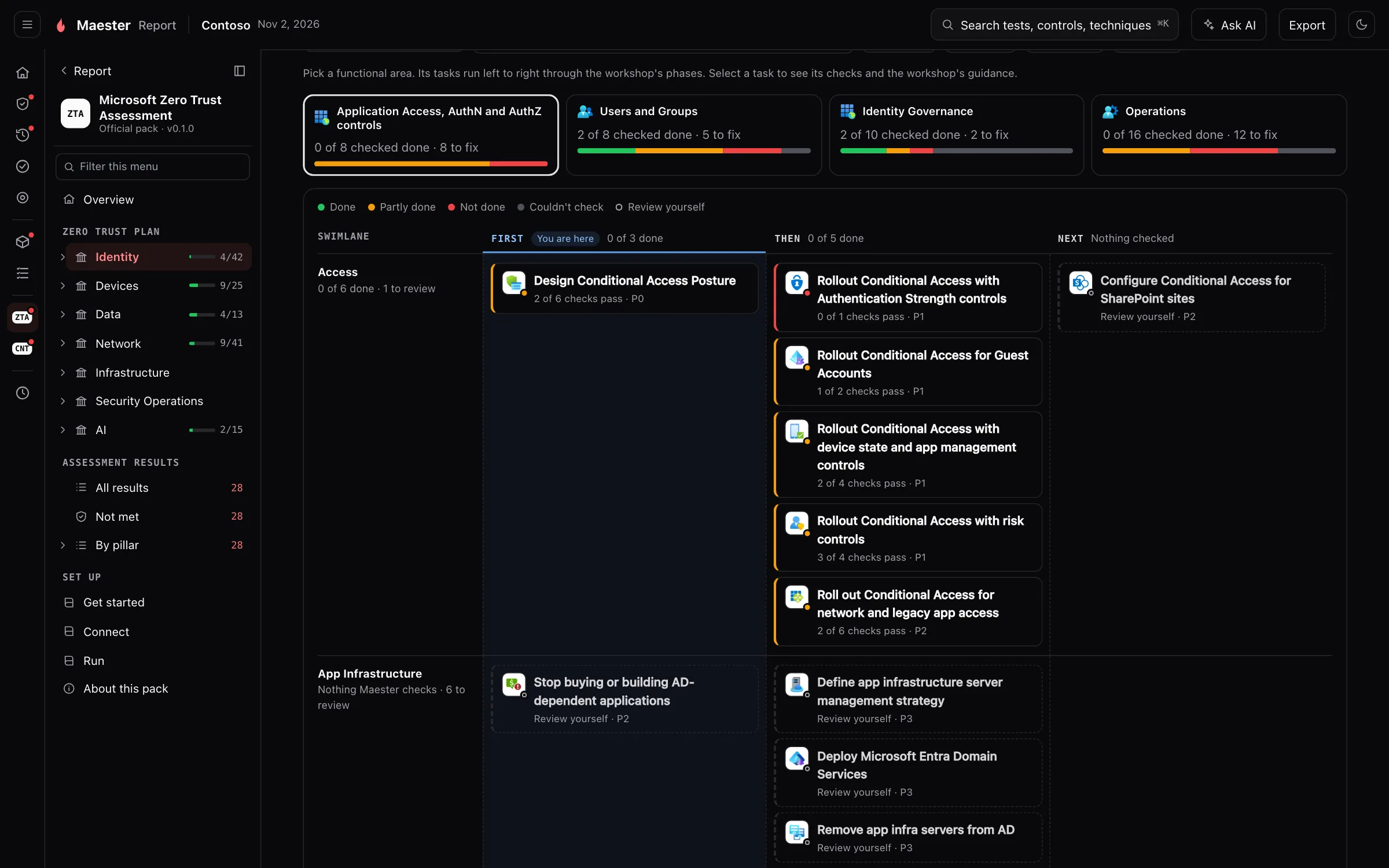
What it is for. One functional area at a time, as a board. The swimlanes are rows and the workshop’s phases, First, Then and Next, are columns.
Why we built it. Order matters in Zero Trust work: a task in Then often depends on one in First. A board shows the order and the progress in the same picture.
How it helps. Each card is coloured by its status, and You are here marks the phase you are in. Read a row from left to right to see what comes next in that swimlane. Pick a functional area from the cards above the board; each one shows how many of its tasks are done and how many are left to fix.
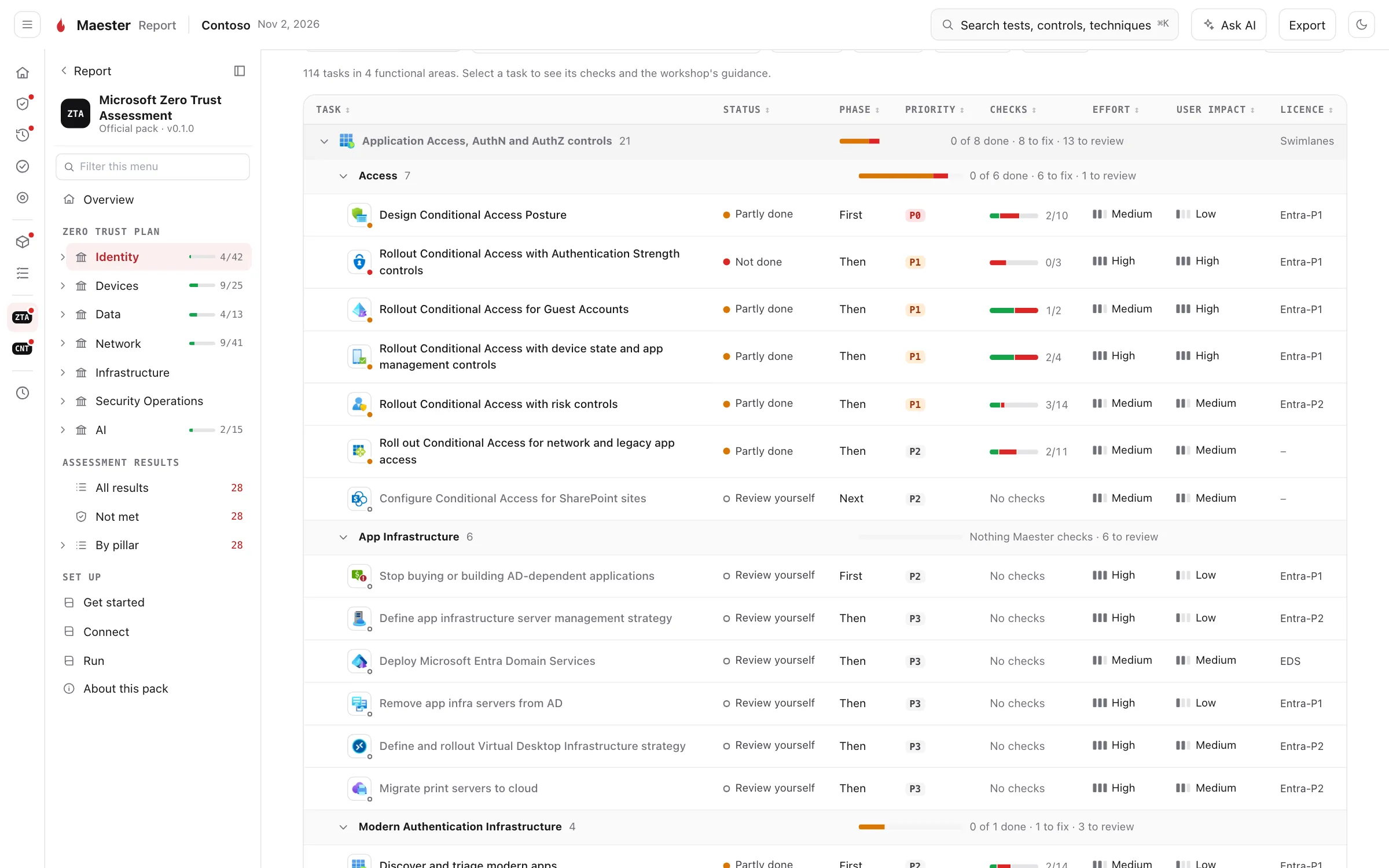
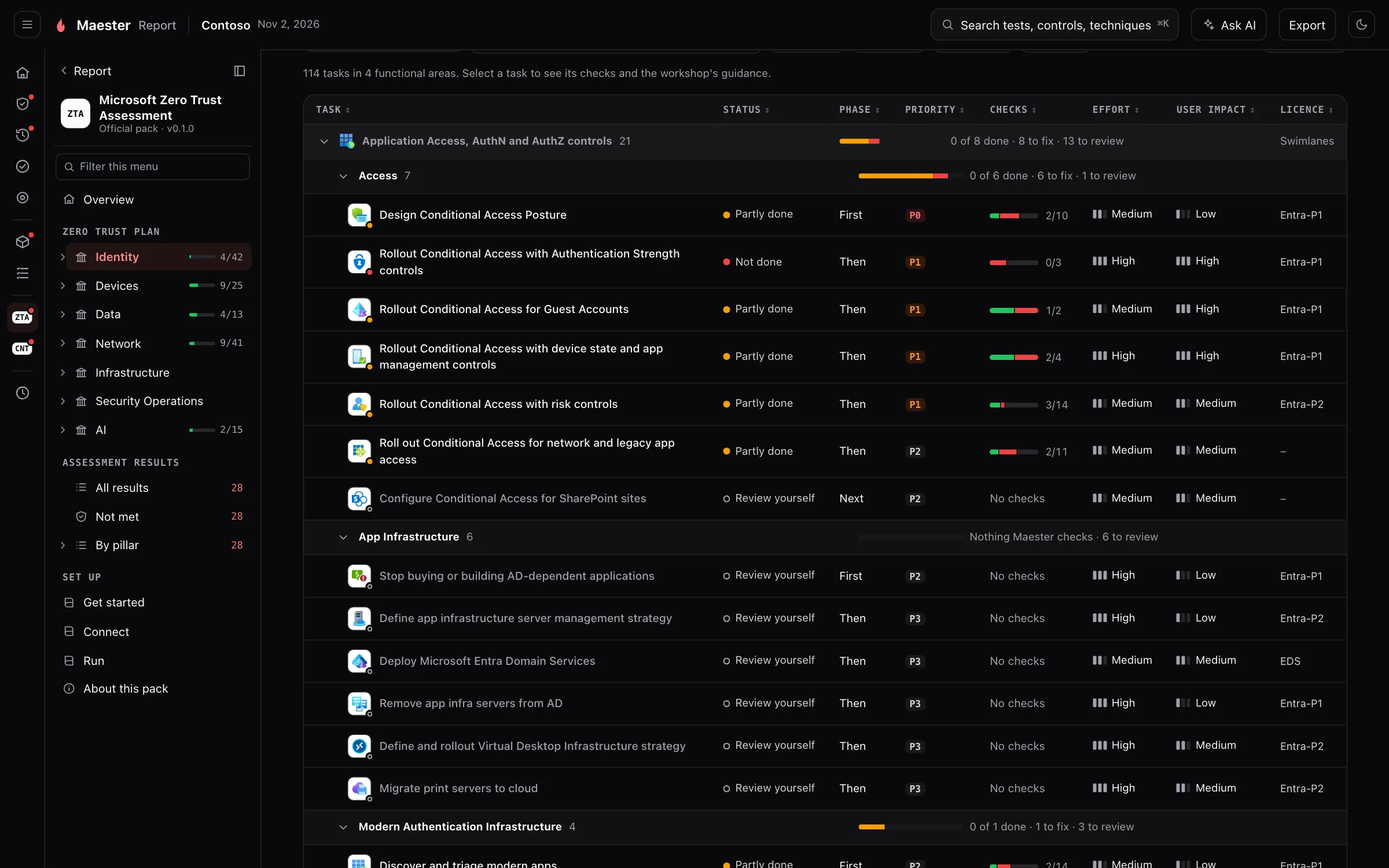
What it is for. Every task of the pillar in one table, grouped by functional area and swimlane.
Why we built it. A board is good for seeing the shape of the work. A table is better for planning it.
How it helps. Sort and filter by status, phase, priority, effort, user impact and licence. For example, show the tasks that are not done, in the First phase, with low effort, to get this month’s work. The licence column says what each task needs, so you don’t plan work you are not licensed for.
A task
Section titled “A task”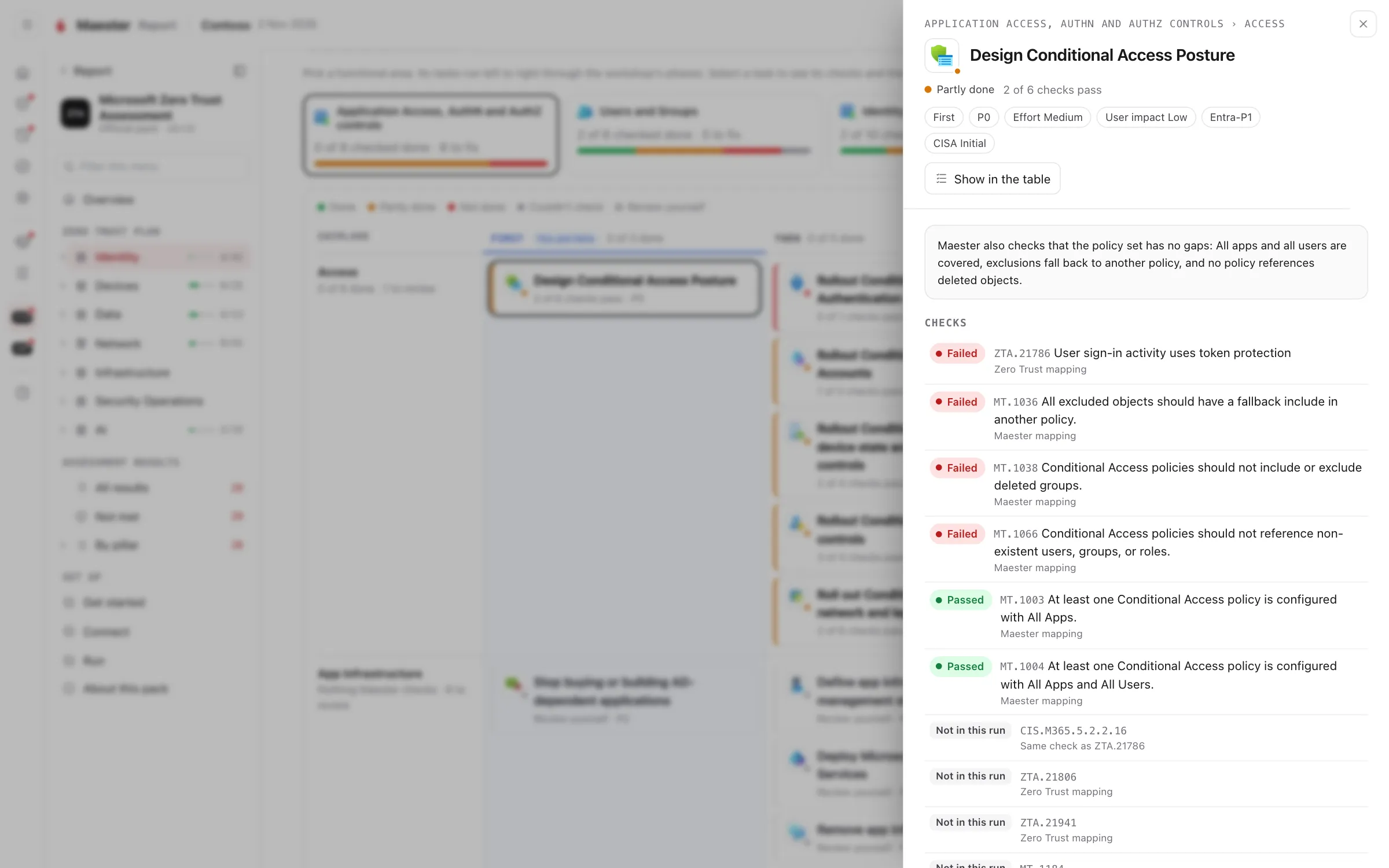
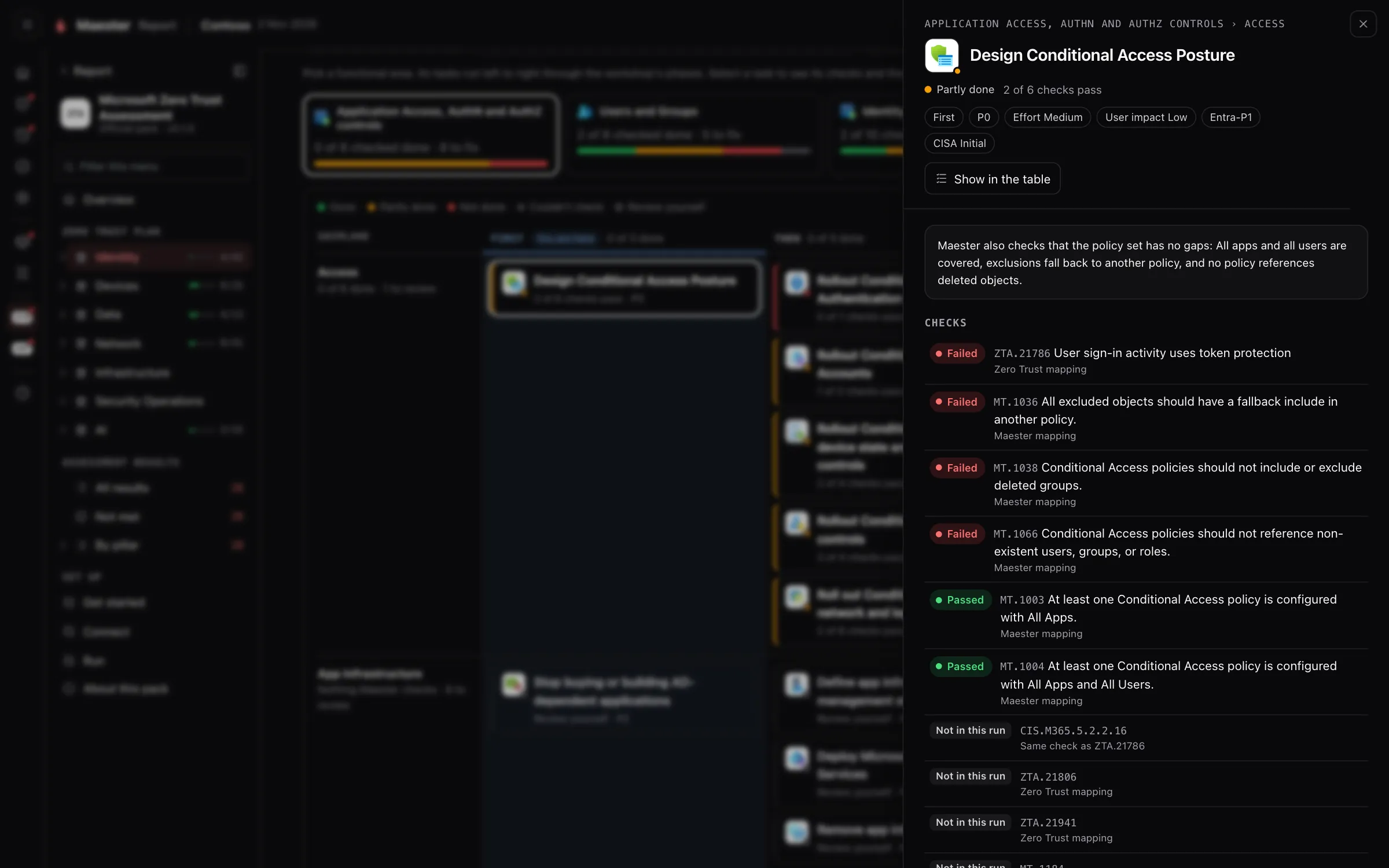
What it is for. One task of the plan: its status, phase, priority, effort, user impact and licence, the checks that measure it, what to do first, and Microsoft’s guidance.
Why we built it. “Partly done” is only useful if you can see which part is missing.
How it helps.
- Checks lists every check behind the task with its result. Select one to open the finding and its fix.
- Each check says where its mapping comes from: Microsoft’s own mapping of assessment tests to the task, a Maester test that checks the same setting, or a Maester test that Maester maps to the task. Where Maester checks more than the workshop asks, a note says so.
- Do first and Comes before show the tasks this one depends on and the ones that depend on it.
- A few tasks are marked Maester. They are ones Maester adds that the workshop does not have, such as hardening Microsoft Entra Connect sync.
Zero Trust Workshop content © Microsoft; guidance and check mapping from microsoft/zerotrustassessment, MIT licence.